
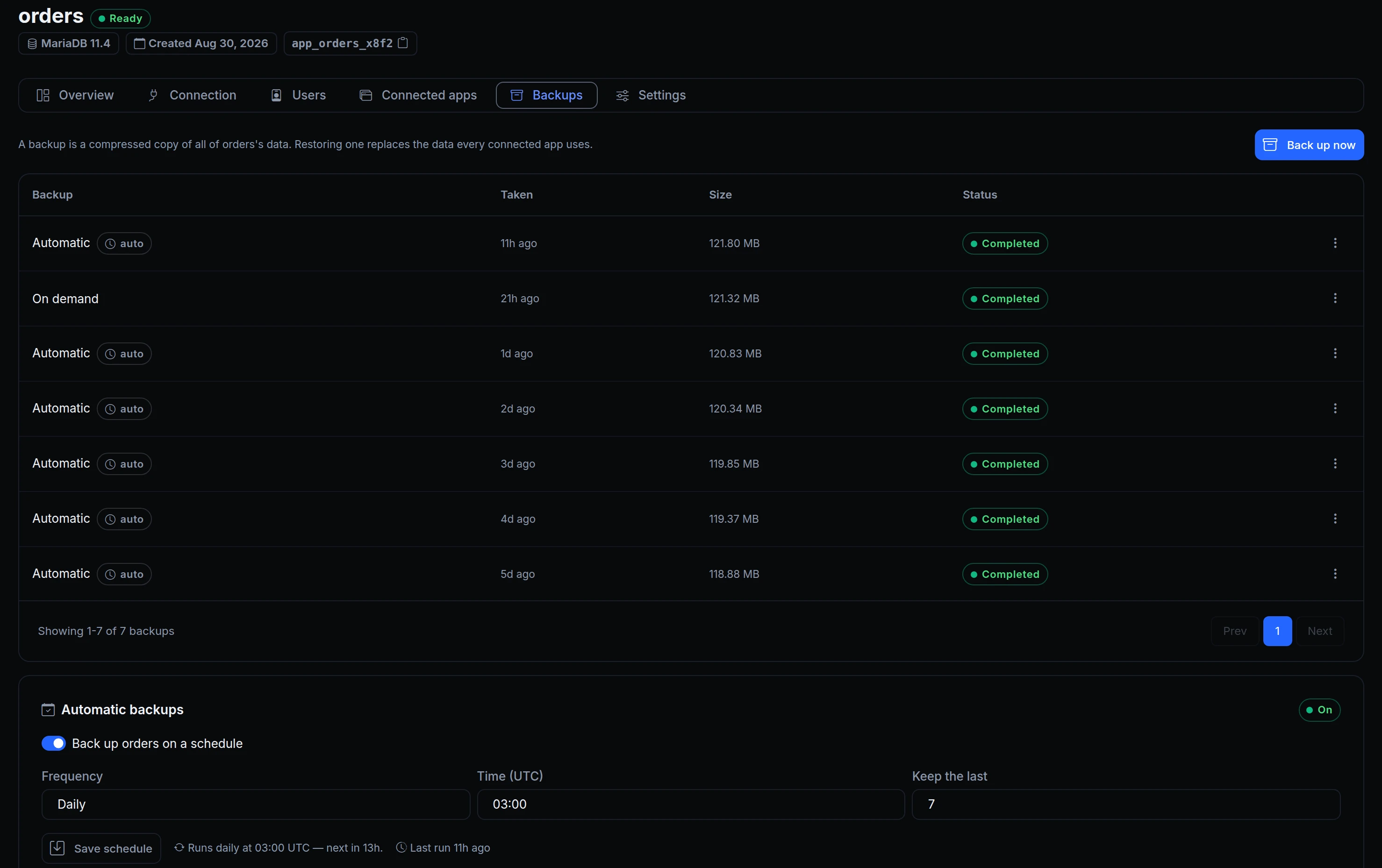
You can redeploy an app from Git whenever you like. The rows in its database are different: they exist in one place, and a bad migration or a careless script can take them with it. This guide walks through everything ngris gives you to protect that data, using one example throughout: Acme Labs' orders database, which two apps use, orders-api and console.
Each step shows the dashboard first, then the same thing over the API, so you can script it. The screenshot above is the Backups tab of orders: one backup taken by hand, six by the schedule, newest first.
Before you start
You need a managed database (Storage → Databases). For the API examples you also need:
- An API key. Create one from your user menu → API keys. For CI and other automation, use an account key from Account → Account keys, so it keeps working when people leave the team.
- The database's UUID. The API addresses a database by its UUID:
export NGRIS_API_KEY="ngk_..."   # better: load it from your secret store

curl -s https://api.ngris.com/v1/databases \
  -H "X-API-KEY: $NGRIS_API_KEY" | jq -r '.databases[] | "\(.uuid)  \(.name)"'

export DB="<the uuid of orders>"
Or use the ngris CLI. It takes the same API key or account key, saved once, and ngris api has a command for each step below.
Needs ngris 0.5.0 or later.
ngris auth --api-key        # asks for the key; or set NGRIS_API_KEY
ngris api databases list

export DB="<the uuid of orders>"
1. Take a backup before a risky change
A backup is a compressed copy of the whole database: its tables, data and views. Take one before every migration you aren't sure about.
In the dashboard, open the database, go to the Backups tab and click Back up now. The row shows Backing up… and the page updates by itself until the backup is Completed.
Over the API, ask for a backup and keep its UUID:
BACKUP=$(curl -s -X POST "https://api.ngris.com/v1/databases/$DB/backups" \
  -H "X-API-KEY: $NGRIS_API_KEY" | jq -r .backup.uuid)

# pending → running → completed (or failed, with the reason in .backup.error)
curl -s "https://api.ngris.com/v1/databases/$DB/backups/$BACKUP" \
  -H "X-API-KEY: $NGRIS_API_KEY" | jq -r .backup.status
With the CLI:
BACKUP=$(ngris api database-backups create "$DB" --jq .backup.uuid)

ngris api database-backups get "$DB" "$BACKUP" --jq .backup.status
One backup of a database runs at a time. Asking for a second one while the first is still running returns 409 with the code backup_in_progress.
2. Back up on a schedule
Backups you remember to take are good. Backups that happen by themselves are better.

On the Backups tab, switch on Automatic backups, choose Daily or Weekly, a Time (UTC) and how many to keep (Keep the last), then click Save schedule. The card then shows when the next run is.
The same schedule over the API:
curl -s -X PUT "https://api.ngris.com/v1/databases/$DB/backup-schedule" \
  -H "X-API-KEY: $NGRIS_API_KEY" \
  -H "Content-Type: application/json" \
  -d '{"enabled": true, "frequency": "daily", "hour_utc": 3, "retain_count": 7}'
With the CLI:
ngris api database-backups set-schedule "$DB" --enabled --frequency daily --hour-utc 3 --retain-count 7
Three things to know about the schedule:
- Retention counts every backup. After each scheduled run, ngris deletes the oldest completed backups beyond the newest N, including the ones you took by hand. Download a backup first if you want to keep it for longer.
- Weekly means every 7 days from the first run.
- Skipped runs. A run is skipped while the database isn't ready, is paused, or already has a backup running. The schedule then moves on to its next run.
3. Download a backup and open it locally
Every completed backup can be downloaded as a .sql.gz file. It's the simplest way to keep a copy outside ngris, or to look at yesterday's data without touching production.

In the dashboard, open the backup's ⋮ menu and choose Download. Over the API:
curl -fL -o orders.sql.gz \
  "https://api.ngris.com/v1/databases/$DB/backups/$BACKUP/download" \
  -H "X-API-KEY: $NGRIS_API_KEY"
The CLI's ngris api request saves files of up to 32 MB (step 5 has an example), so for a backup the size of orders, use curl.
The file has no DROP TABLE statements, so import it into an empty database, for example on your laptop:
mariadb -u root -p -e "CREATE DATABASE orders_copy"
gunzip -c orders.sql.gz | mariadb -u root -p orders_copy
Try this once before you need it. A backup you have opened is a backup you know works.
4. Restore after a mistake
An hour ago a cleanup script at Acme deleted the wrong rows from orders. This morning's automatic backup was taken before that, so that's the one to restore.
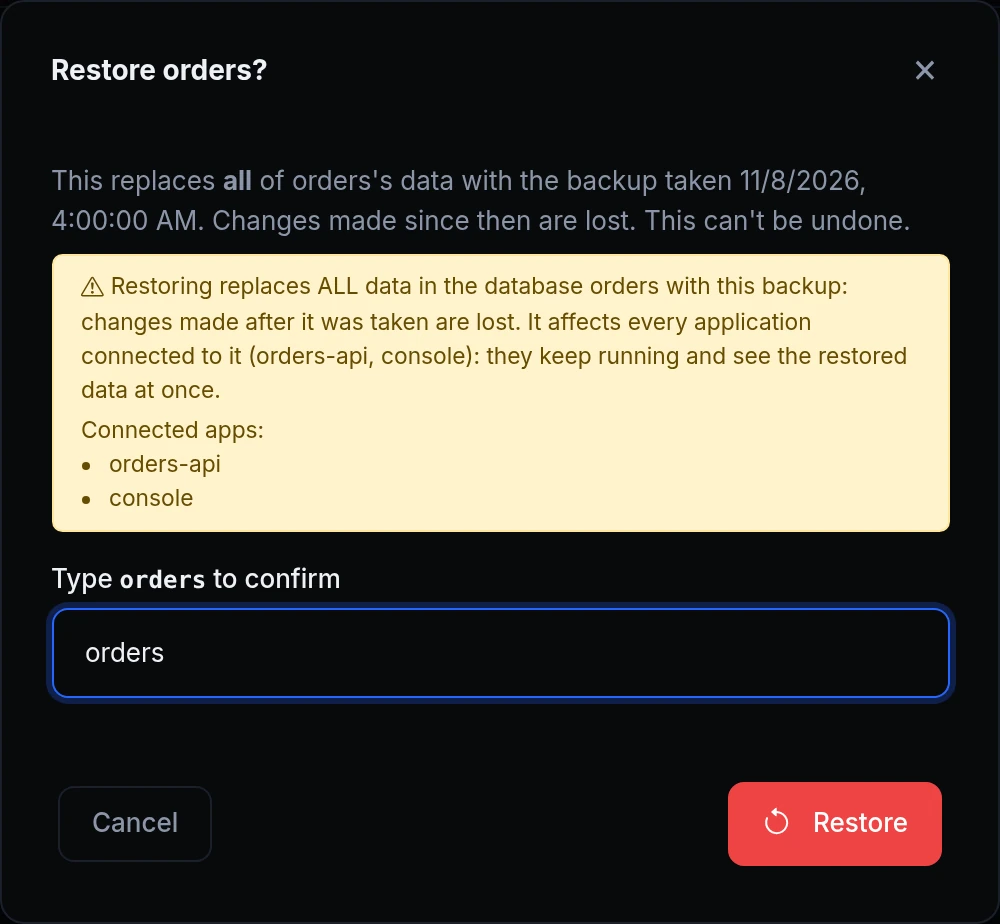
Open the backup's ⋮ menu and choose Restore…. Read the dialog, type the database's name and click Restore. The backup shows Restoring…, then Restored.
Before you click, know what a restore does:
- It replaces all of the database's data. Anything written after the backup was taken is lost, and there is no undo. If in doubt, take a fresh backup first, so you can come back to the current state.
- It affects every connected app.
orders-apiandconsolekeep running and see the restored data when the restore finishes. While it runs, the tables are dropped and imported again, so the apps can find tables missing for that time. Pick a quiet moment.
Over the API, find the backup first: the list is newest first and says how each one was taken.
curl -s "https://api.ngris.com/v1/databases/$DB/backups" \
  -H "X-API-KEY: $NGRIS_API_KEY" | jq -r '.backups[] | "\(.uuid)  \(.trigger_source)  \(.created_at)"'

BACKUP="<the uuid of this morning's scheduled backup>"
The restore call returns 202 with the same warning and the list of connected apps:
curl -s -X POST "https://api.ngris.com/v1/databases/$DB/backups/$BACKUP/restore" \
  -H "X-API-KEY: $NGRIS_API_KEY" | jq -r .warning

# restoring → restored (or failed, with the reason in .backup.restore_error)
curl -s "https://api.ngris.com/v1/databases/$DB/backups/$BACKUP" \
  -H "X-API-KEY: $NGRIS_API_KEY" | jq -r .backup.restore_status
With the CLI, --yes confirms the restore, since it replaces the data:
ngris api database-backups list "$DB"

BACKUP="<the uuid of this morning's scheduled backup>"
ngris api database-backups restore "$DB" "$BACKUP" --yes

ngris api database-backups get "$DB" "$BACKUP" --jq .backup.restore_status
One restore runs at a time, and a paused database can't be restored into. You can still download its backups.
5. Get the data out of a paused database
A database can be paused: no app can connect to it, but its data is kept. Acme has one, reports-archive, that nobody has used for months, and the finance team still wants a copy now and then.

On a paused database's Backups tab, click Export data. The card shows Exporting…, then Ready, and Download gets you the .sql.gz file. Export again whenever you need a fresh copy: each export replaces the previous one.
The same over the API:
DB="<the uuid of reports-archive>"

curl -s -X POST "https://api.ngris.com/v1/databases/$DB/export" -H "X-API-KEY: $NGRIS_API_KEY"

# pending → running → completed
curl -s "https://api.ngris.com/v1/databases/$DB/export" \
  -H "X-API-KEY: $NGRIS_API_KEY" | jq -r .export.status

curl -fL -o reports-archive.sql.gz \
  "https://api.ngris.com/v1/databases/$DB/export/download" \
  -H "X-API-KEY: $NGRIS_API_KEY"
With the CLI:
ngris api database-backups export "$DB"

ngris api database-backups export-status "$DB" --jq .export.status

ngris api request GET "/v1/databases/$DB/export/download" > reports-archive.sql.gz
An open database answers 409 database_not_paused. Back it up instead.
6. Decide who can take the data out
A backup is your data, so ngris treats getting it out as its own permission:
- Databases (write, update, delete) lets a role take backups, restore them, change the schedule and delete backups.
- Database data (read) lets a role download backups and export paused databases.
Every download and export is recorded in the account's audit log.
From your AI assistant
The ngris MCP server has tools for all of this: backups, restores, schedules and exports. Connect it to your assistant and ask, for example, "Back up the orders database and tell me when it's done."
Get started
- Go to Storage → Databases and open your database.
- On the Backups tab, click Back up now.
- Switch on Automatic backups and click Save schedule.
- Download one backup and import it into an empty database, so you know your copy works.
- Read the docs: Backups, Export a paused database, and the API reference for backups, the backup schedule and exports.