
A migration that goes wrong, a script that deletes the wrong rows: the data in your database is the one thing a redeploy can't bring back. You need a copy you can return to, and a way to get your data out even when the database is paused.
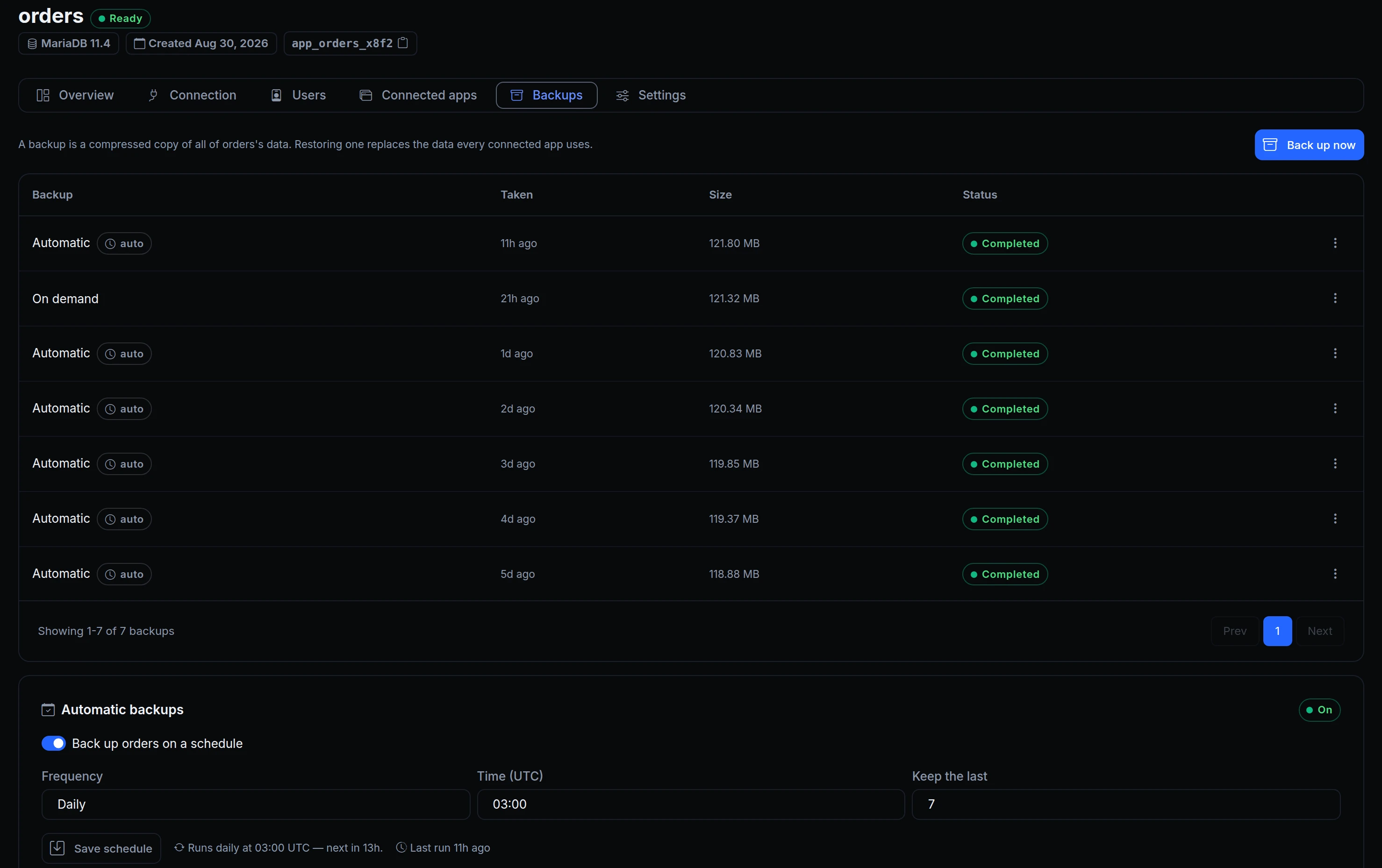
Every managed database now has a Backups tab. Take a backup whenever you want or on a schedule, download any backup as a compressed SQL file, restore one into the database, and export a paused database as often as you like.


What you can do
- Back up now. A copy of the whole database: its tables, data and views.
- Automatic backups. Daily or weekly, at the hour you pick (UTC), keeping the last N. Backups you take by hand count toward N.
- Download. Any completed backup, as a
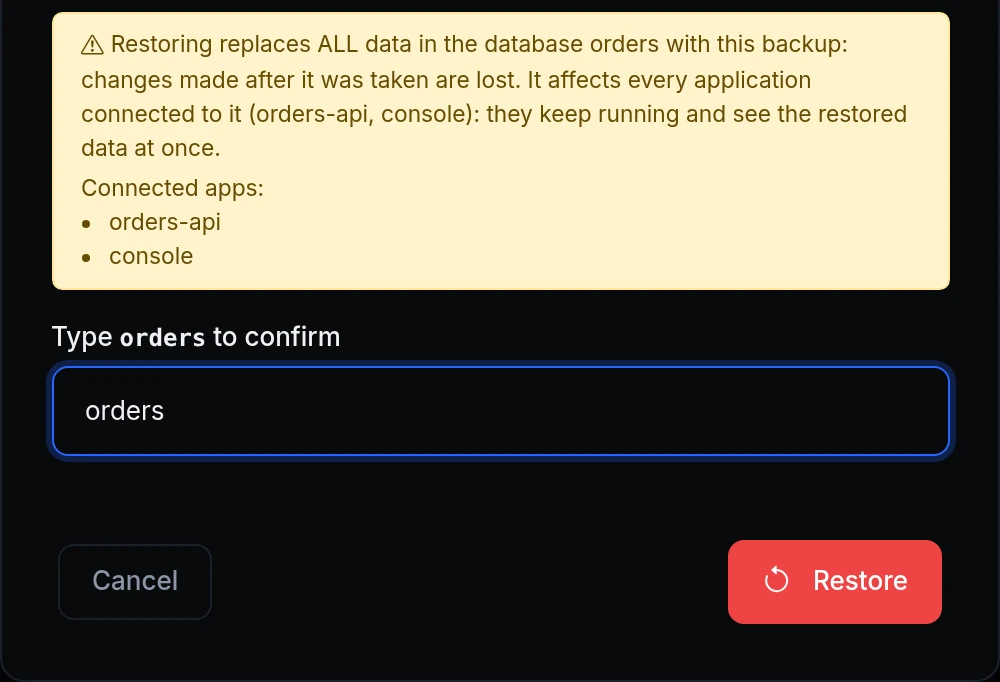
.sql.gzfile you can import into an empty database anywhere. - Restore. Replaces all of the database's data with the backup, for every app connected to it. You type the database's name first, and there is no undo, so take a fresh backup before you restore.
- Export a paused database. As often as you like. Each export replaces the previous one, so the latest copy is the one you download.
- Who can take data out. Downloads and exports need the Database data permission, so you choose which roles can.
Backups, restores, schedules and exports are in the API and the MCP server too.
Get started
- In the dashboard, go to Storage → Databases and open a database.
- On the Backups tab, click Back up now, or switch on Automatic backups, pick the frequency, time and how many to keep, and click Save schedule.
- To restore, open a backup's ⋮ menu, choose Restore…, type the database's name and click Restore.
- On a paused database, click Export data, then Download when it's ready.
- Read the docs: Backups, Automatic backups, Export a paused database and the API reference.