
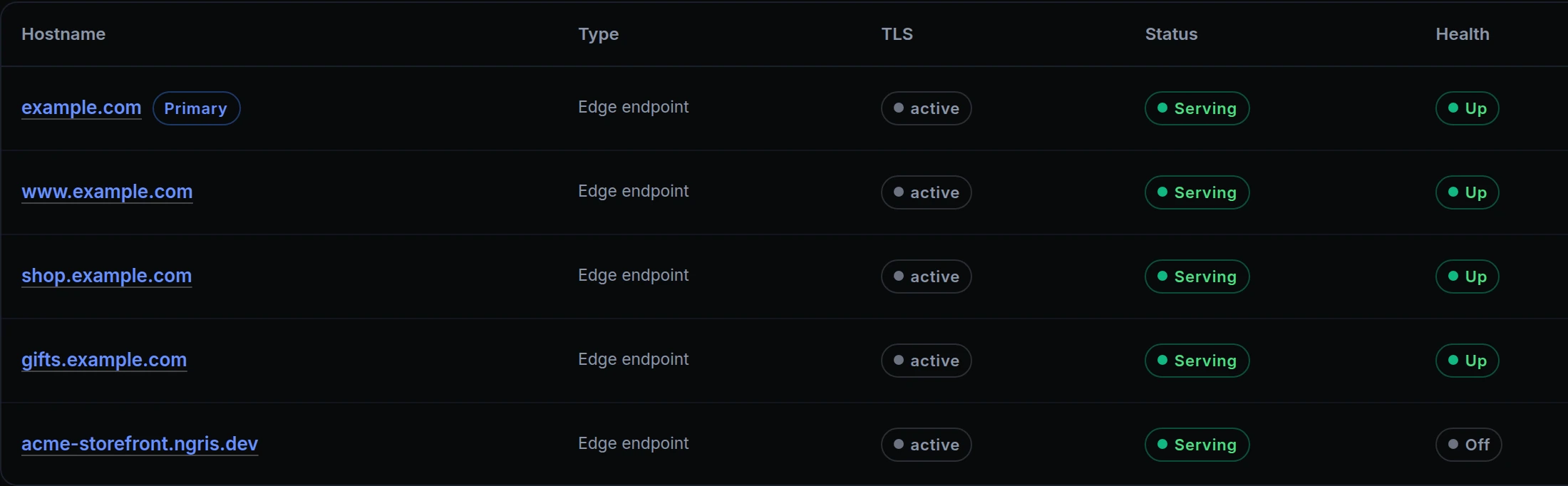
An app used to have exactly one endpoint, so one site meant one address. And the app page couldn't tell you whether that address was answering.
Now an app can have several endpoints. Each one serves the production deploy with its own hostname, certificate and settings, and one of them is the app's primary address. You can add a new endpoint or use one you already have, and each endpoint can have an uptime check that shows on the app's Overview.
What changed
- Several endpoints per app. Add them on the app's Domains tab, above. Every endpoint serves the production deploy and keeps its own sign-in, traffic rules and certificate. Previews keep their own URLs.
- The primary. It's the app's main address. Make primary in an endpoint's menu changes it.
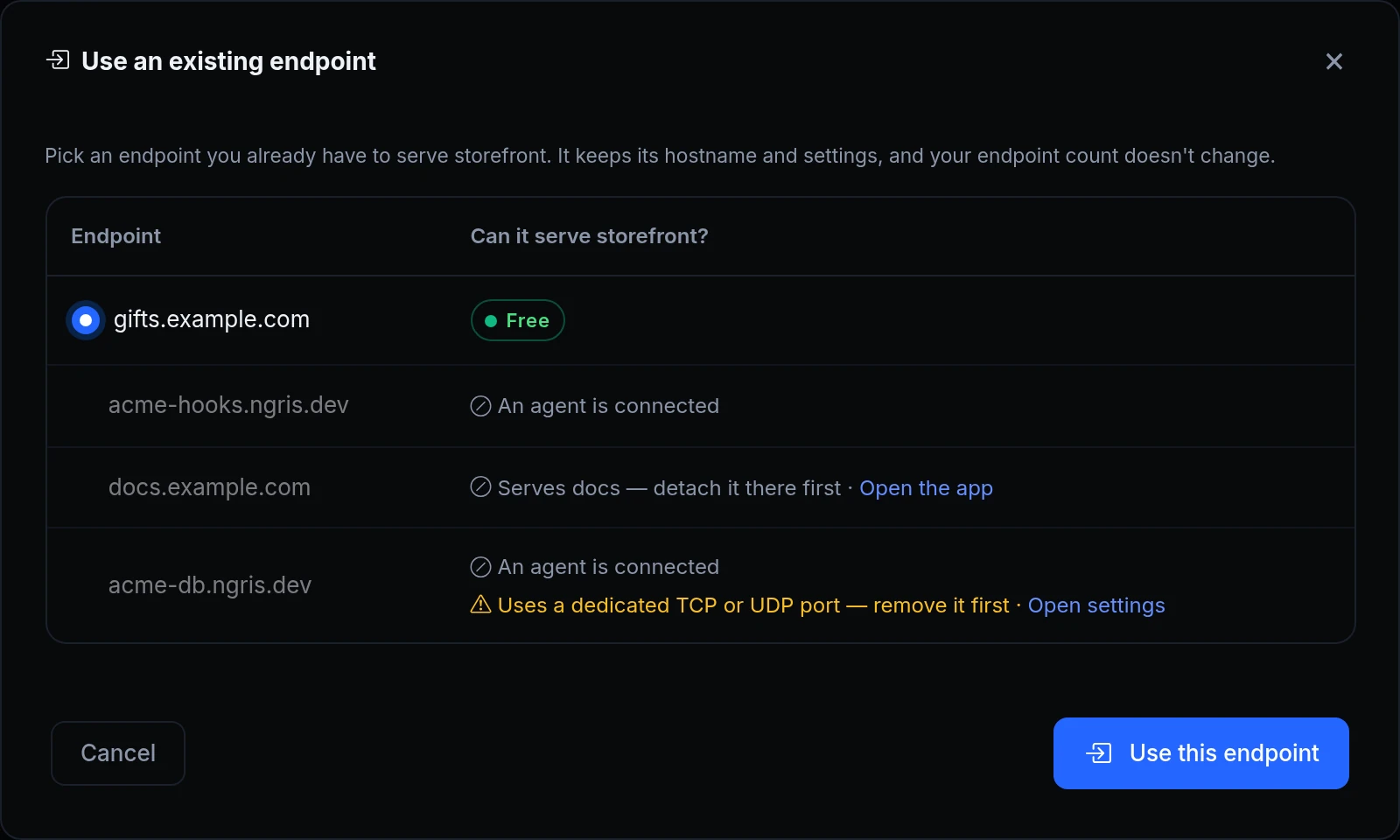
- Use an existing endpoint. The endpoint keeps its hostname, custom domain, certificate, sign-in and traffic policies, and your endpoint count doesn't change. While it serves the app, agents can't connect to it.
- Detach from app. The endpoint goes back to being a tunnel endpoint with its settings, offline until an agent connects. Deleting an app frees its endpoints the same way.
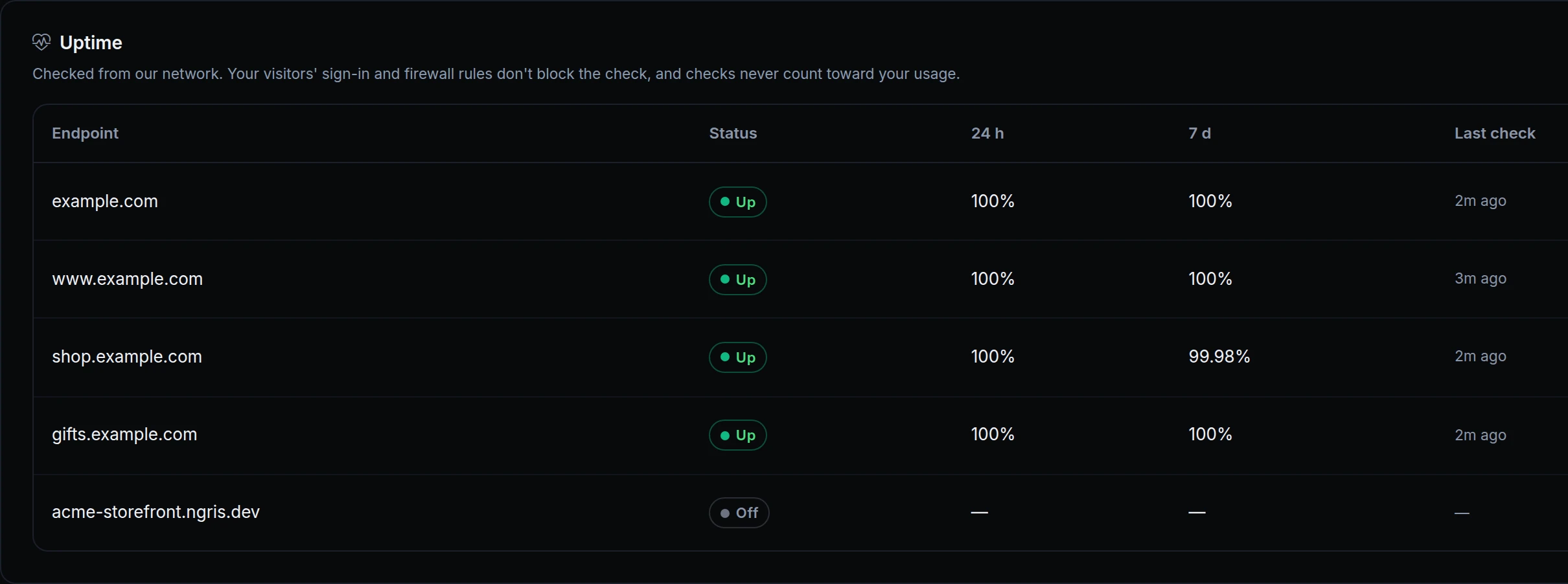
- Uptime checks. Turn them on per endpoint and choose the path to check and how often. An endpoint shows Down only after two failed checks in a row, and you can get an email when it goes down and when it comes back.
- Checks stay out of the way. They come from our network, so your visitors' sign-in and firewall rules don't block them, and they never count toward your usage.
Get started
- In the dashboard, go to Gateway → Applications, open the app and its Domains tab.
- Click Add endpoint, then Create a new endpoint or Use an existing endpoint.
- To check an endpoint, choose Manage settings in its menu, then switch on Enable health checks in the Endpoint Health card.
- Follow every endpoint in the Uptime card on the app's Overview tab.
- Read the docs: Domains, endpoints & HTTPS, Use an endpoint you already have and Endpoint health.