
A user who forgot their password had to ask you for a new one. Invites were links you copied and sent yourself, people couldn't sign up with an email and a password, and nobody could change their own name or password.
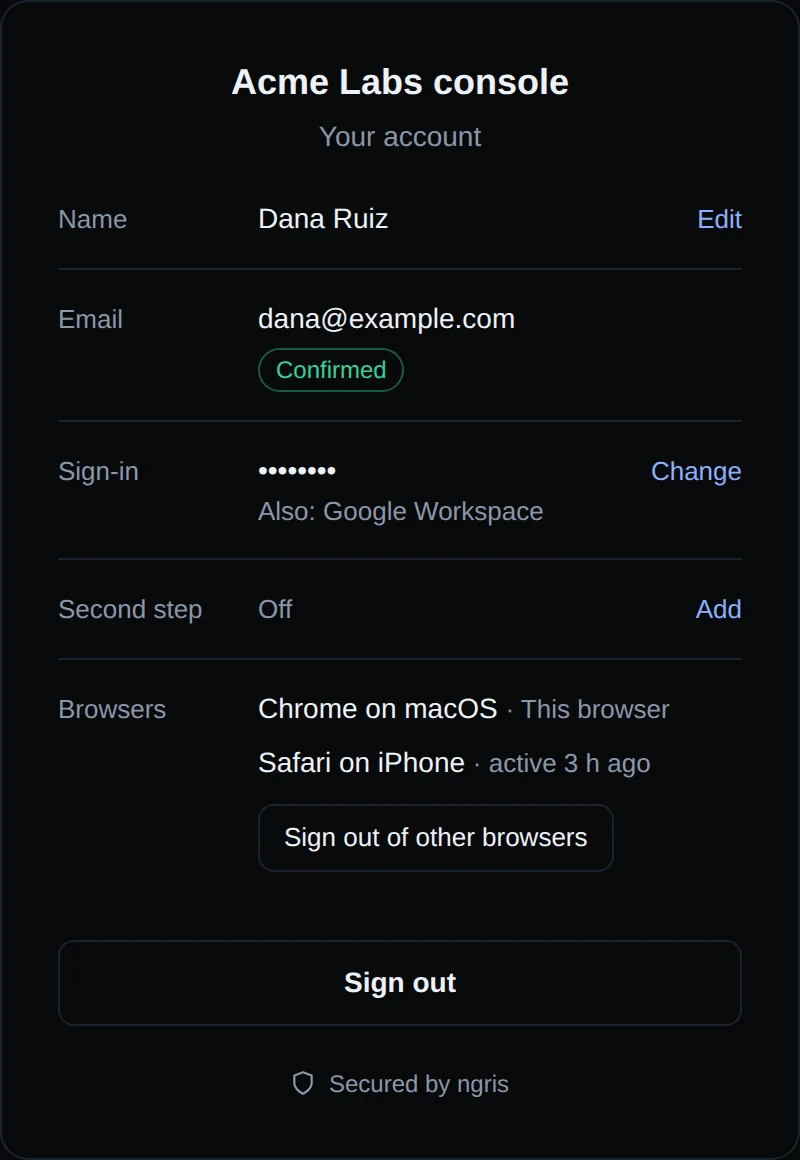
Now ngris hosts these pages on your endpoint's own address, and sends their emails from your address via ngris. Above is Dana's account page on Acme Labs' console: her name, her confirmed email, how she signs in, and the browsers she's signed in on.
What changed
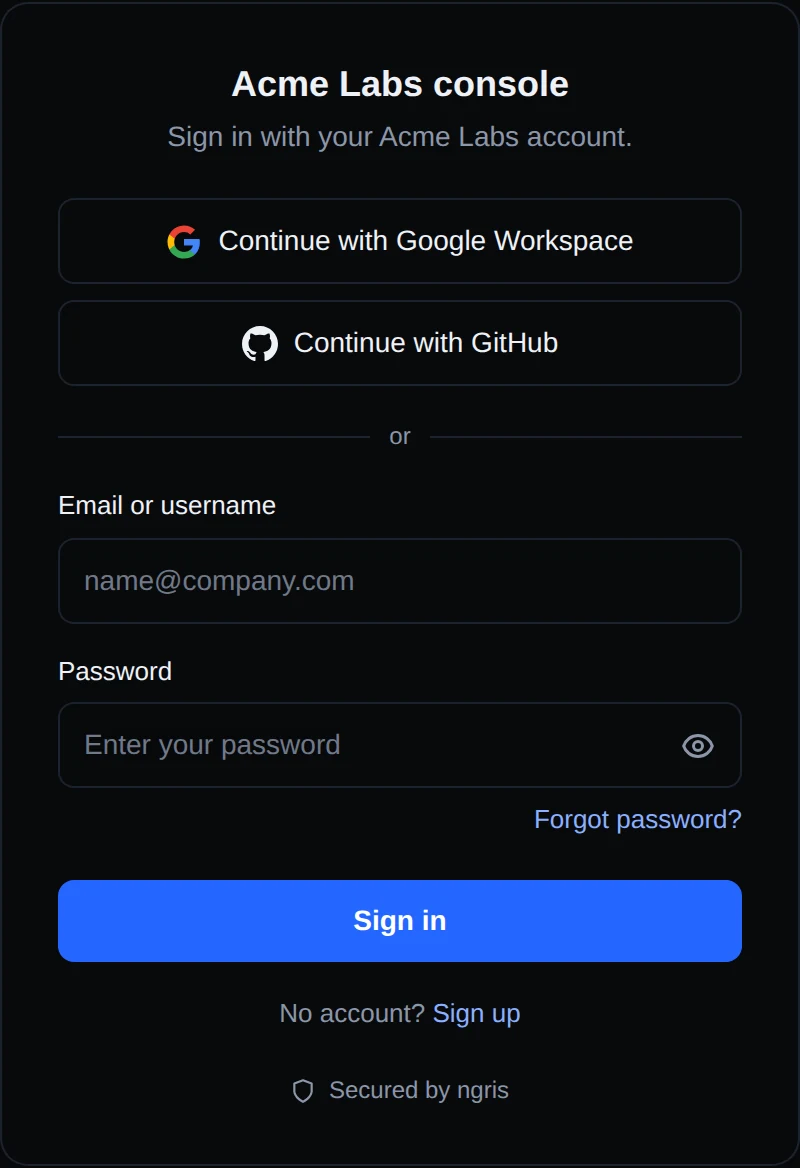
- Forgot password? A user types their email and gets a link to choose a new password. It works once, for 1 hour, and the page answers the same for every address. After a reset, their other browsers are signed out.
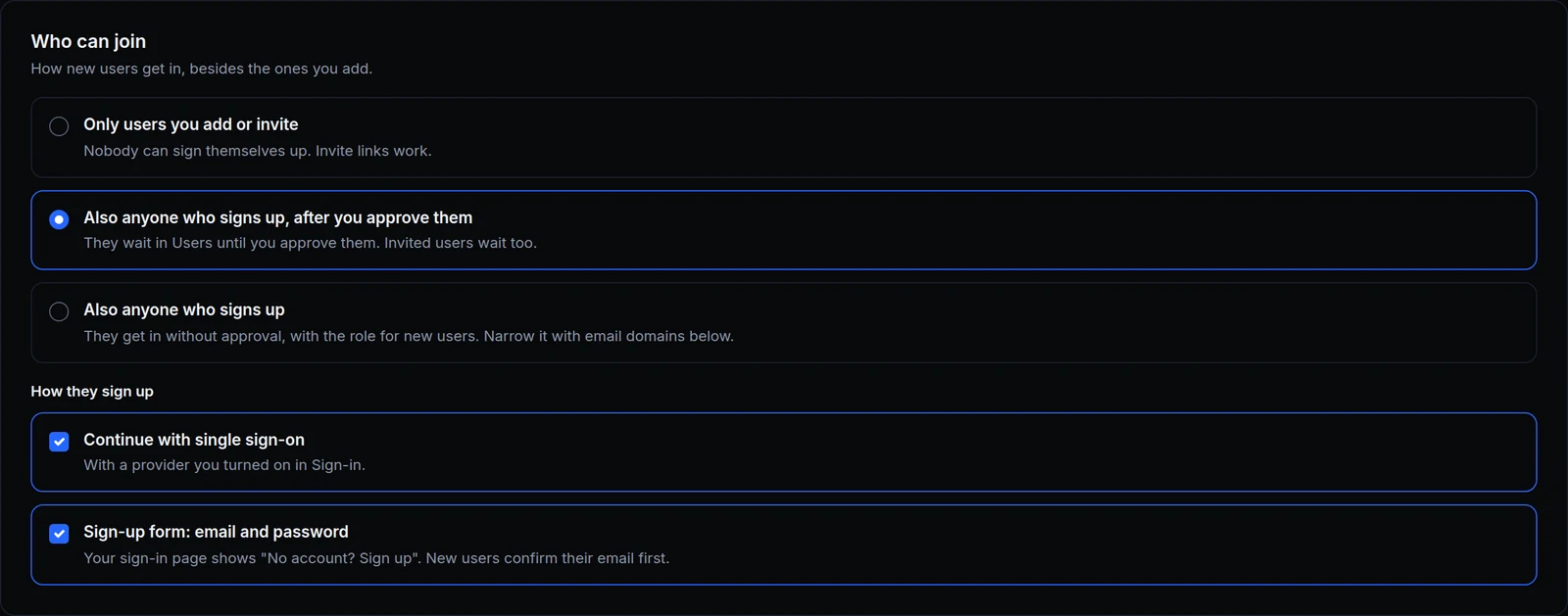
- A sign-up page. With Sign-up form: email and password ticked in Sign-ups, the sign-in page links to it. New users confirm their email first, and wait for your approval if you ask for it.
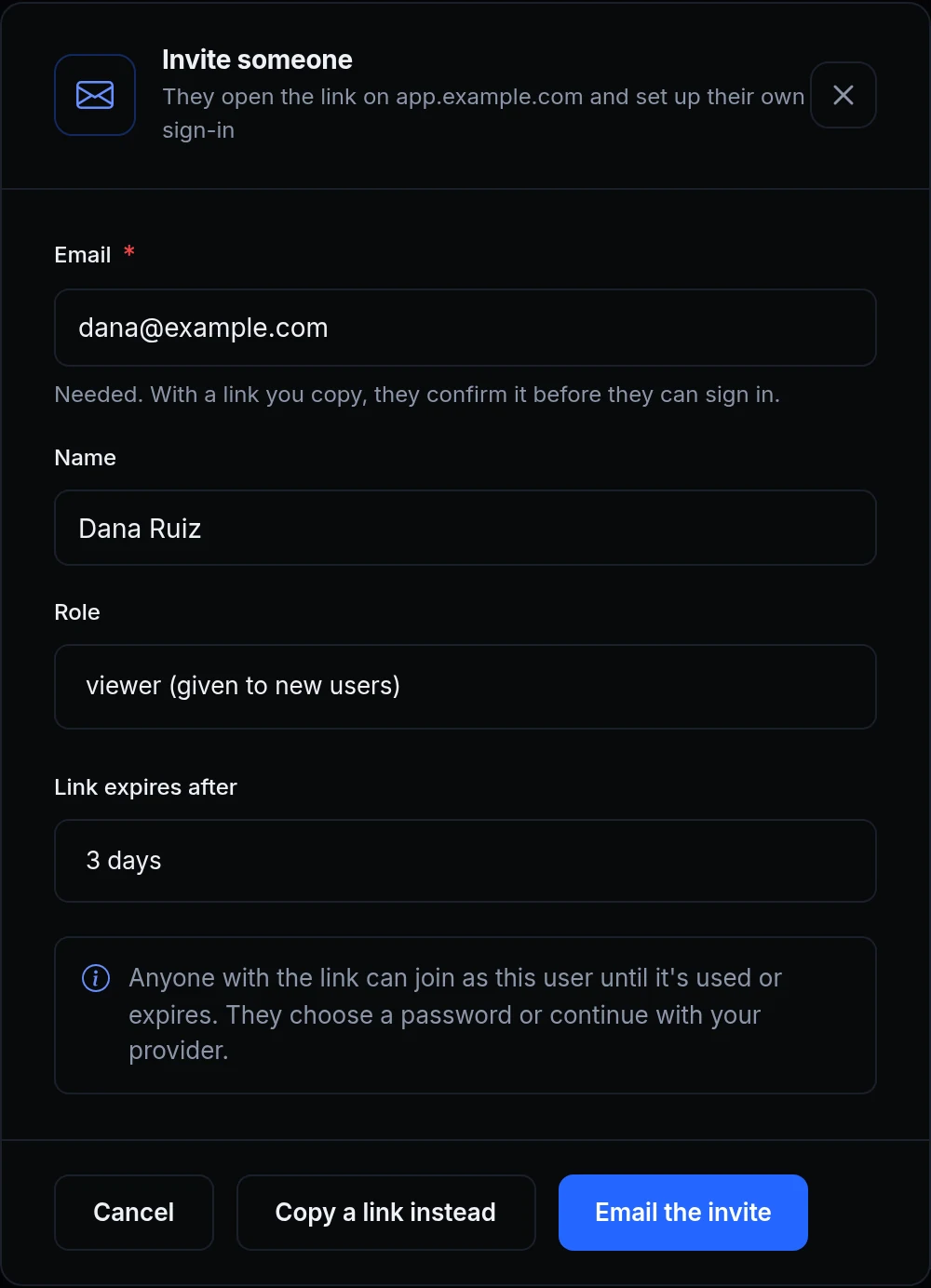
- Emailed invites. Email the invite sends the link from your endpoint's address via ngris, and using it proves the address. Resend in Invitations sends a new link, and the old one stops working.
- An account page. At
/_tunnel_auth/accounton your endpoint, signed-in users change their name and password, confirm their email and sign out of their other browsers. The Account page link card in Your app has the link and its HTML. - Password rules. Every new password has at least 12 characters and isn't one from a known data breach. In Password rules you can ask for up to 64 characters, and for an uppercase letter, a lowercase letter, a number or a symbol. A user whose older password is too short chooses a new one at their next sign-in.
- Confirmed emails. Each user's page shows Confirmed or Not confirmed. Reset links and password emails go to confirmed addresses only.
Get started
- Open the endpoint's Sign-in & access tab, then Sign-ups, and choose who can join.
- To let people sign up with a password, tick Sign-up form: email and password.
- In Users, click Invite, type their email and click Email the invite.
- In Your app, copy the link from the Account page link card into your app's menu.
- Read the docs: Forgot password, Sign-up page and Account page.