
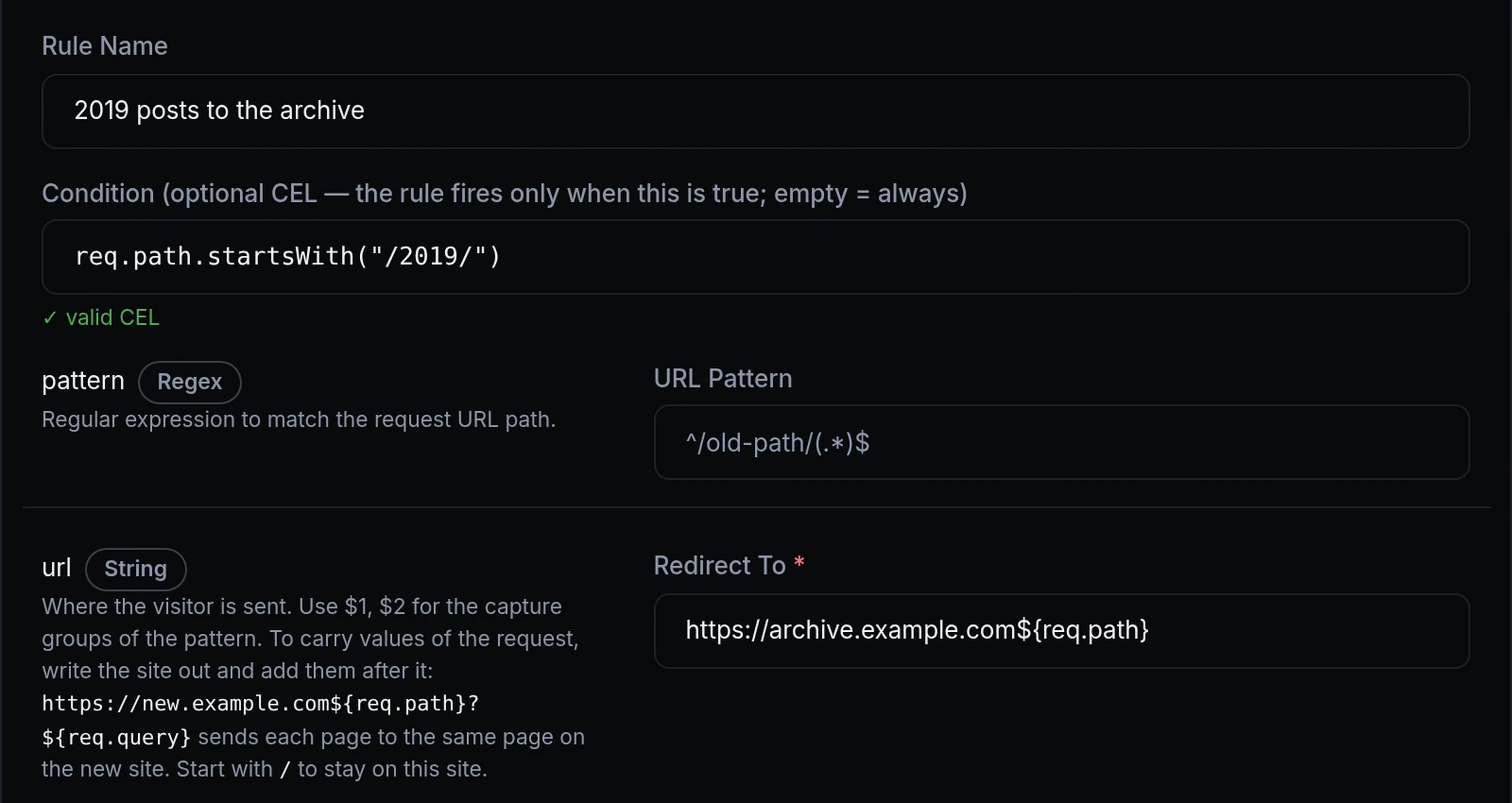
A traffic rule often belongs to one part of a site: a header for the pages under /drafts, a redirect for the posts of one year. Until now a rule that shapes the answer, such as Add Headers in the response phase, applied to every answer whatever its condition said, and a header's value was the same text for every visitor.
Now every rule follows its condition, and a value can be filled in from the request. Above, Acme Labs moves its 2019 posts to an archive site: the condition picks the posts, and ${req.path} sends each visitor to the same page there.

What changed
- Response rules follow their condition. Add Headers and Remove Headers in the response phase, CORS, Custom Error Page, Replace Body, Compress and Image Optimization apply only to the answers of the requests their condition matches. The condition reads the request: its path, headers, cookies and query, the client's address, your Set Variables values and the bot score.
- Values from the request. Write
${...}in a header's value, a redirect's address or a custom response. Anything a condition can read can stand between the braces:${req.path},${req.query},${req.headers["x-request-id"]},${conn.client_ip}or${vars.tier}. - A value stays a value. It comes from the visitor's request, so each place writes it in a way that keeps it a value: it can't turn into markup, and it can't change where a redirect goes. A rule is checked when you save it, and a
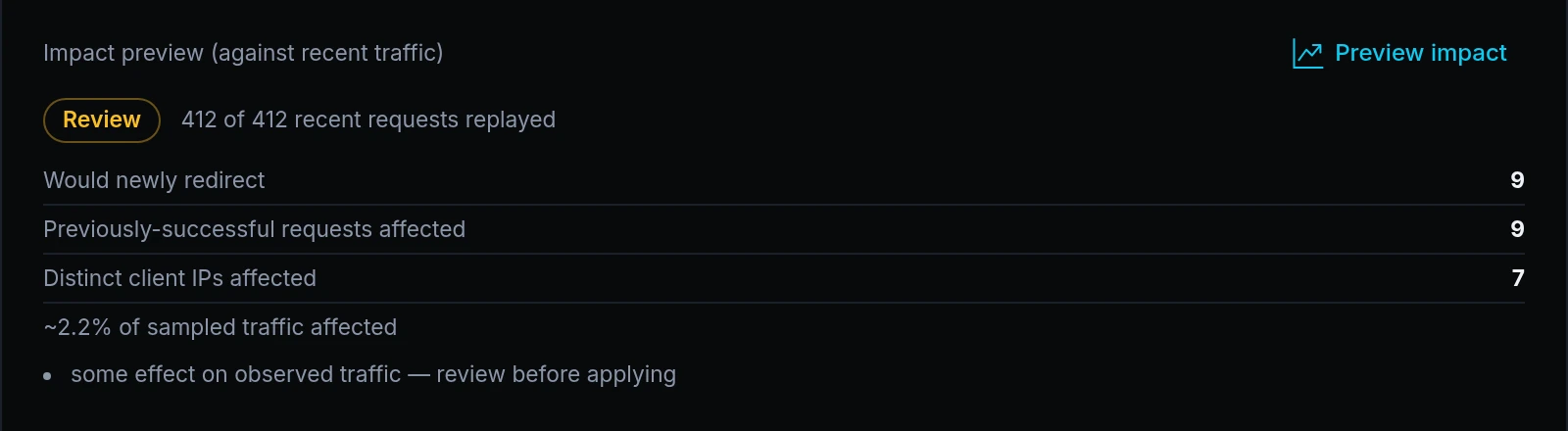
${...}the edge can't read is refused with the reason. - The preview reads the condition. Preview impact replays a rule only on the requests its condition matches. A request it can't judge from the captured traffic is counted under Could not be judged, never guessed. The Rate Limit rule is replayed as well.
- With a cache rule. A request that a response rule with a condition matches gets its answer from your app, and that answer isn't stored. Every other request uses the cache as before.
Get started
- Open an endpoint's Traffic Policy tab and add or edit a rule.
- Give it a condition, such as
req.path.startsWith("/drafts"). - Put a value from the request where you need one:
https://new.example.com${req.path}in a redirect,${conn.client_ip}in a header. - Click Preview impact to see what the rule would have done to your recent traffic, then save. The preview needs traffic capture on the endpoint.
- Read the docs: A condition on a rule and Values from the request.