
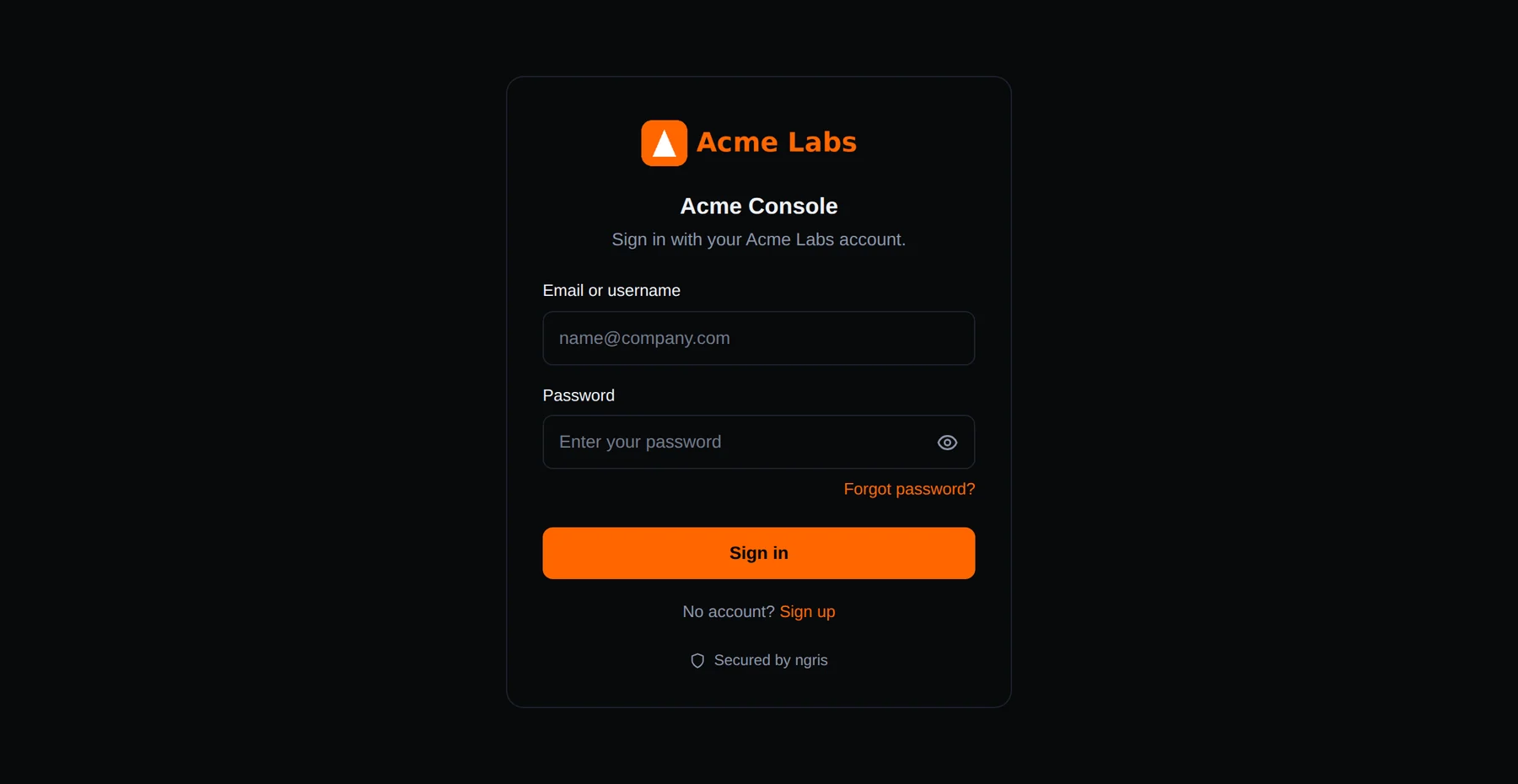
When an endpoint asks its users to sign in, ngris hosts the pages they see: sign-in, sign-up, forgot password and the account page. You could already set their title, message and button label, but every endpoint looked the same, so your users met a page that didn't look like your site.
Now those pages can carry your logo and your colour. Above is the sign-in page of Acme Labs' console, with its logo and its orange.
What changed
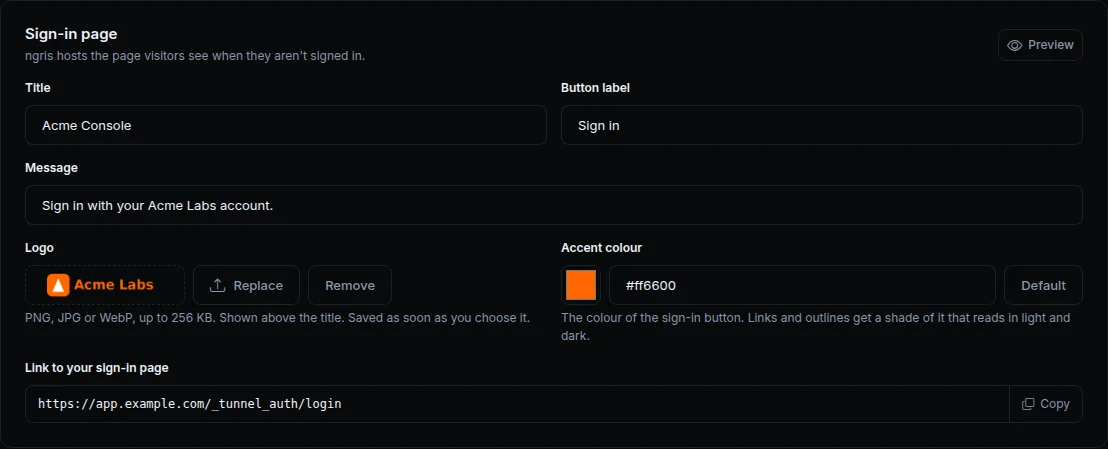
- Your logo. Upload a PNG, JPG or WebP file of up to 256 KB. It shows above the title on every page your users see before they sign in, and on their account page. ngris redraws it as a new PNG of at most 512 pixels on a side, so nothing but the picture reaches the page.
- Your accent colour. The sign-in button takes your colour, with black or white text, whichever reads better. Links and outlines get a shade of it that stays readable on light and dark pages.
- Preview. The card's Preview shows the page as your users see it, logo and colour included.
- Light and dark stay. The pages still follow each visitor's light or dark setting, and still say Secured by ngris.
- From the API and the CLI too.
accent_coloris part of the endpoint's sign-in settings, and the logo has its own routes:PUT,GETandDELETE /v1/endpoints/{uuid}/settings/logo. From a terminal:ngris api endpoints set-sign-in-logo <uuid> --file logo.png.
Get started
- Open the endpoint's Sign-in & access tab and find the Sign-in page card.
- Next to Logo, click Upload and choose your logo.
- Type your colour next to Accent colour, for example
#ff6600, or pick it, and click Save. - Click Preview to see the page your users get.
- Read the docs: Your sign-in page.