Many companies keep their people in one identity provider, such as Okta, Microsoft Entra ID or Google Workspace, and expect every internal app to sign in through it with SAML. Getting SAML right takes work in each app.
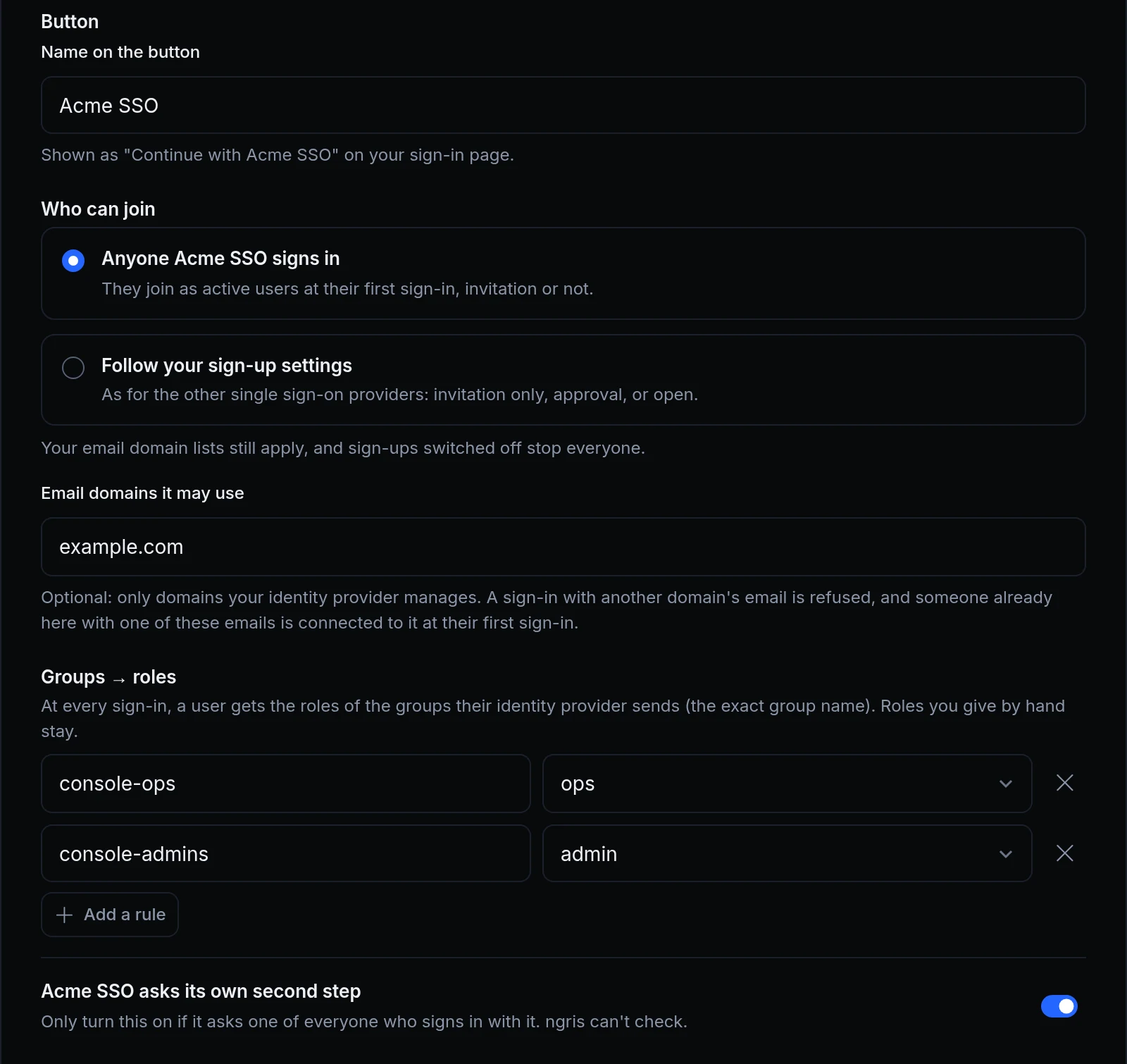
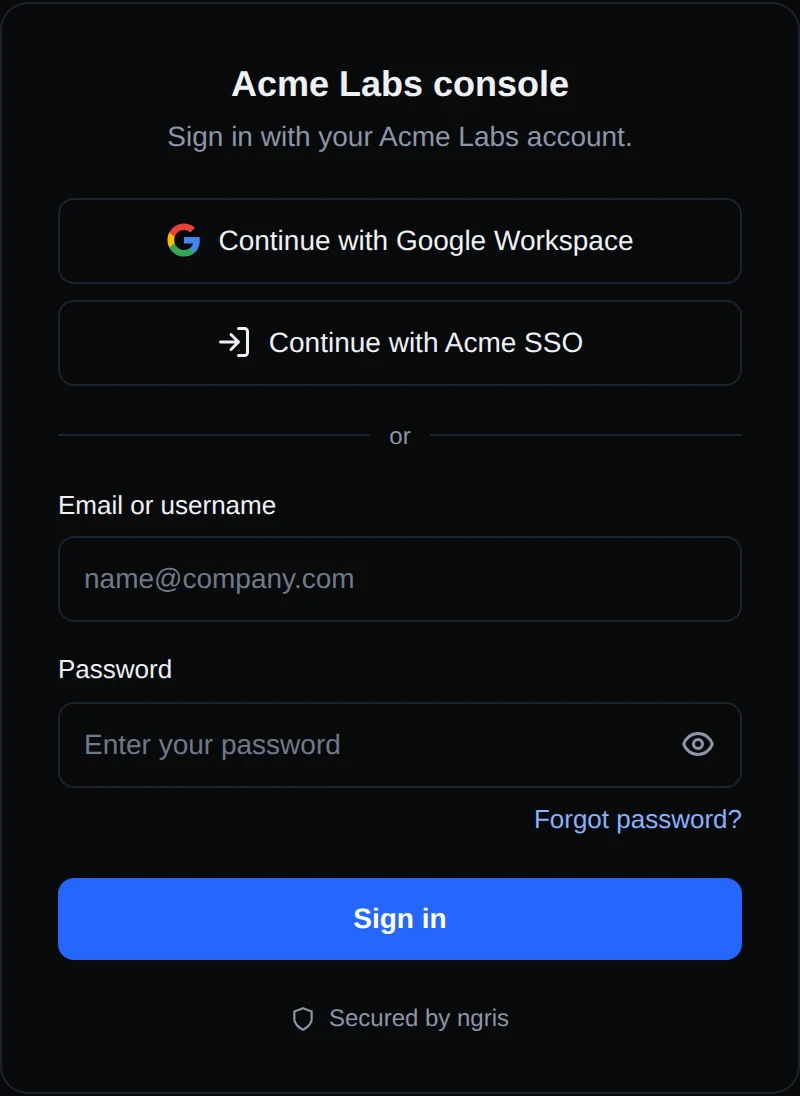
Now an endpoint can add SAML identity providers (IdPs). Each one gets its own button on your sign-in page, Continue with its name, and your app receives SAML users like every other user: in the same signed token and headers. SAML single sign-on is on the Developer, Team and Enterprise plans. Above is Acme Labs' IdP, Acme SSO: anyone it signs in can join, people in its console-ops group get the ops role, and it asks its own second step.
What changed
- Any SAML 2.0 IdP. Okta, Microsoft Entra ID, Google Workspace, OneLogin, JumpCloud, Keycloak, ADFS and others, up to 20 per endpoint.
- ngris's values to copy. The dialog shows the single sign-on URL and the entity ID to enter in your IdP, and ngris's metadata to download. Give ngris the IdP's metadata URL, which it reads again every day for new certificates, or paste the metadata.
- Who can join. With Anyone Acme SSO signs in, people join at their first sign-in, invitation or not. With Follow your sign-up settings, the IdP works like any other single sign-on provider.
- Groups → roles. At every sign-in, a user gets the roles of the groups their IdP sends. Roles you give by hand stay.
- Email domains it may use. Only the domains your IdP manages. A sign-in with another domain's email is refused.
- Its own second step. If your IdP already asks a second step of everyone, turn on Acme SSO asks its own second step, and its sign-ins skip the endpoint's.
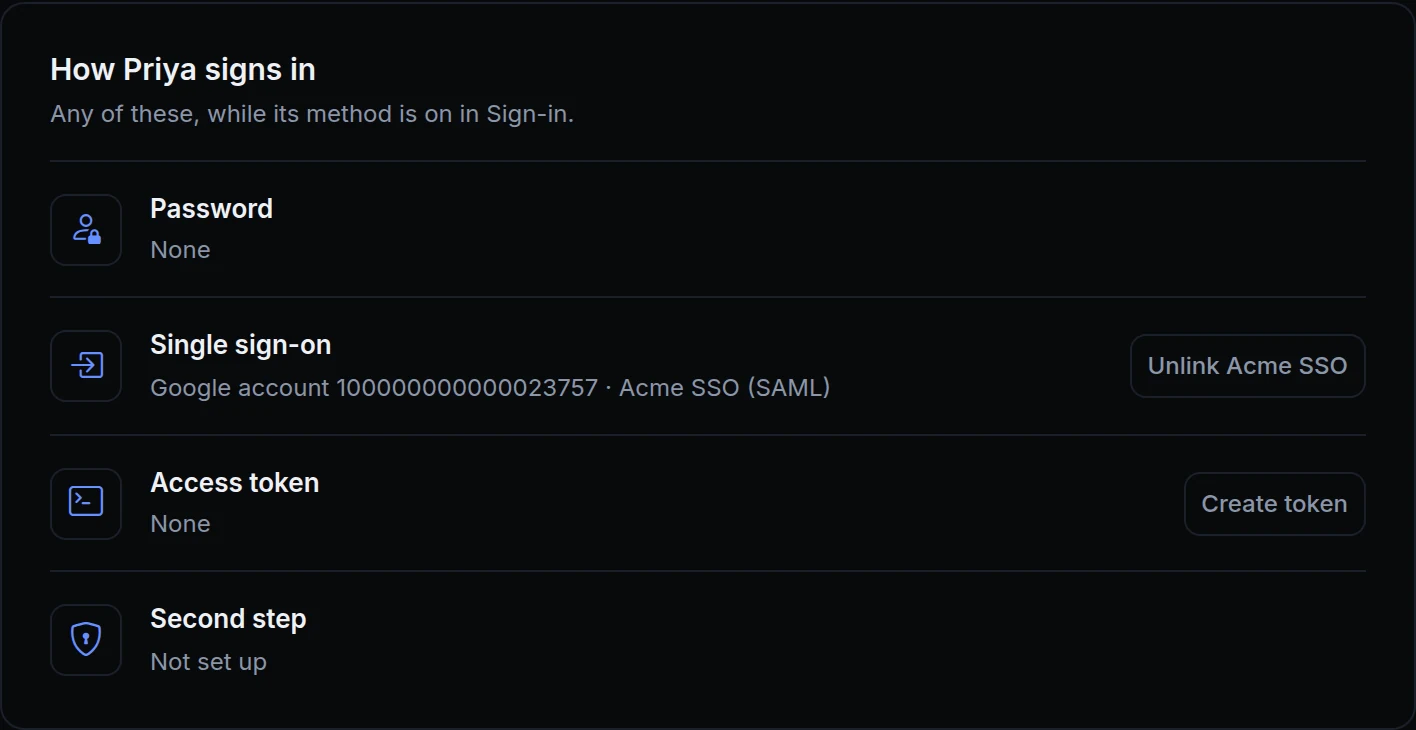
- Users you already have. A user you added or invited is connected to the IdP at their first sign-in with it when the IdP's email domains include their email's domain. They keep the ways they signed in before and the roles you gave them. An IdP without email domains connects nobody this way.
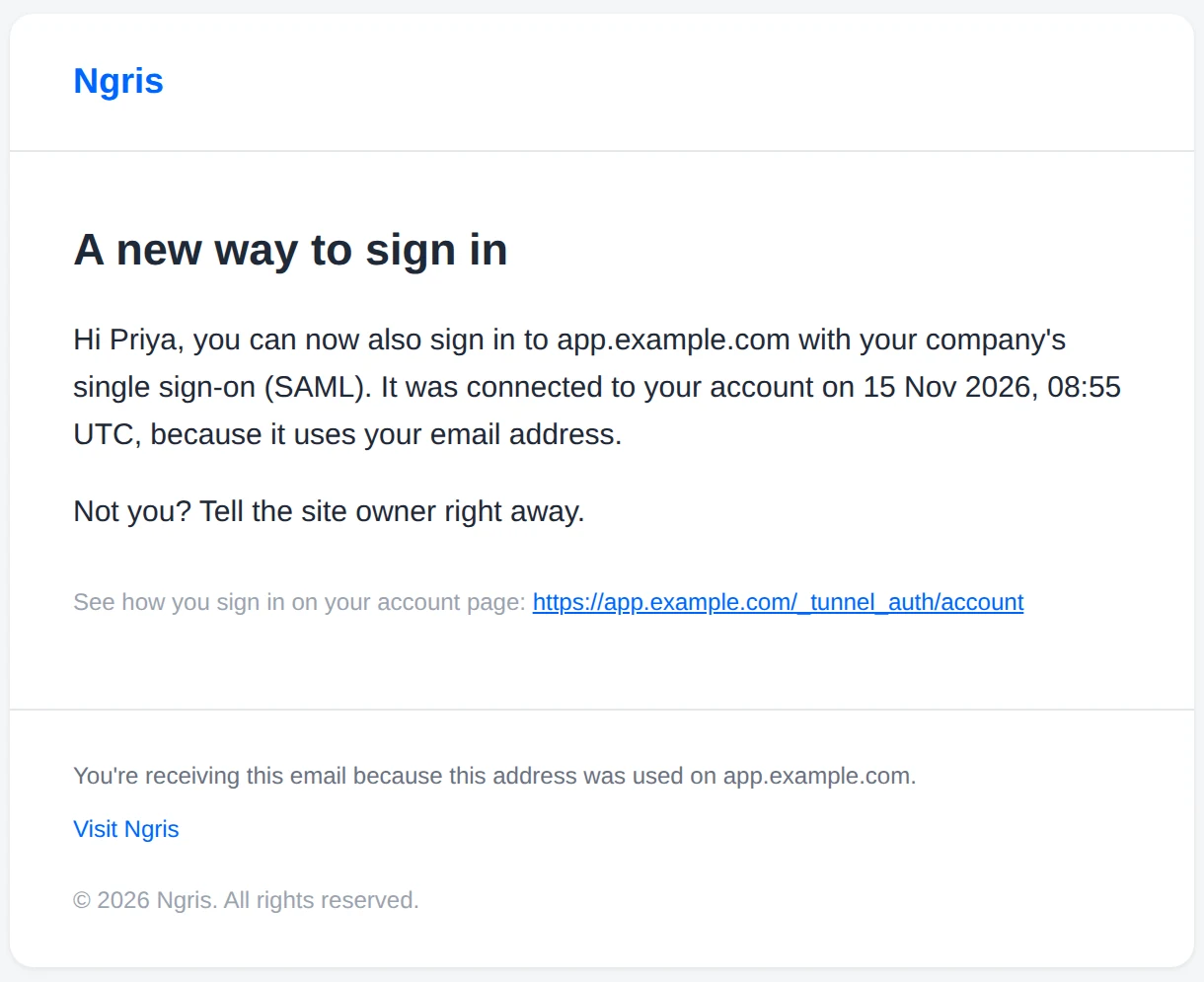
- Added to the ways they already sign in. Since November 15, a connection by email also works for a user who already signs in another way, with a password or with Google: the new way is added to theirs. The same goes for a Google or OpenID Connect address the provider verified. Each time, the user gets an email: A new way to sign in. A user has one account per provider, and one SAML IdP.
- No SAML code in your app. The token's
subis the user's ID. Key your users bysub, never by email.
Get started
- Open the endpoint's Sign-in & access tab, then Sign-in. Under Single sign-on, click Add provider, then SAML.
- In your IdP, create a SAML app with the single sign-on URL and the entity ID the dialog shows, and assign the people who may use it.
- Paste the IdP's metadata URL and click Read. Name the button, choose who can join, and add your email domains and group rules.
- Click Add identity provider, then point your IdP's tile at the start link the dialog shows.
- Read the docs: SAML single sign-on, with the steps for Okta.