A password, or a Google account, is one thing someone can steal. An app with customer data or admin pages wants a second proof that it's really your user, without that proof written into the app.
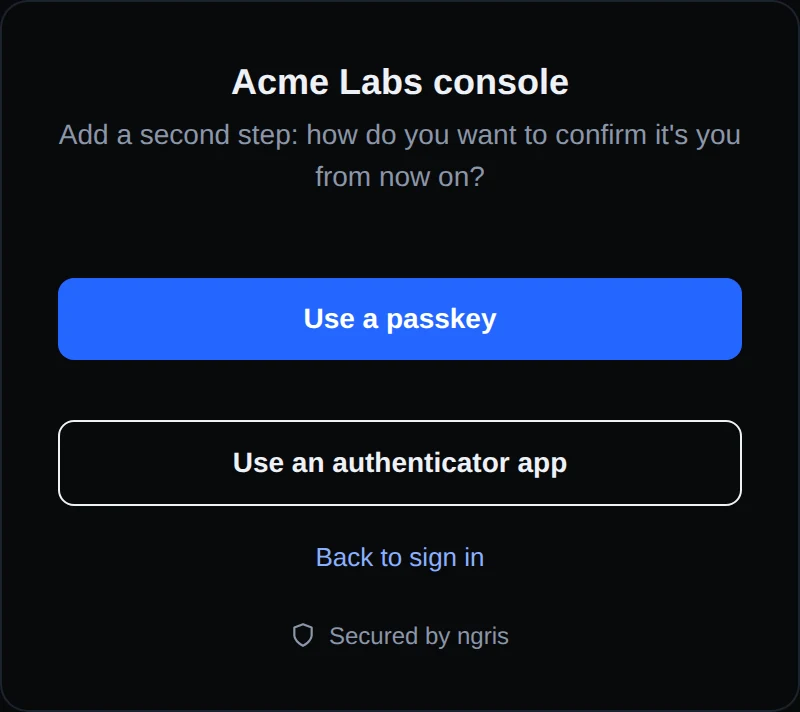
Now an endpoint can ask for a second step after the password or single sign-on: a passkey (Face ID, Touch ID, Windows Hello, a security key or a phone) or an authenticator app with a 6-digit code. Once Maya requires it for the console, Dana sees the page above at her next sign-in, after a code we email her.
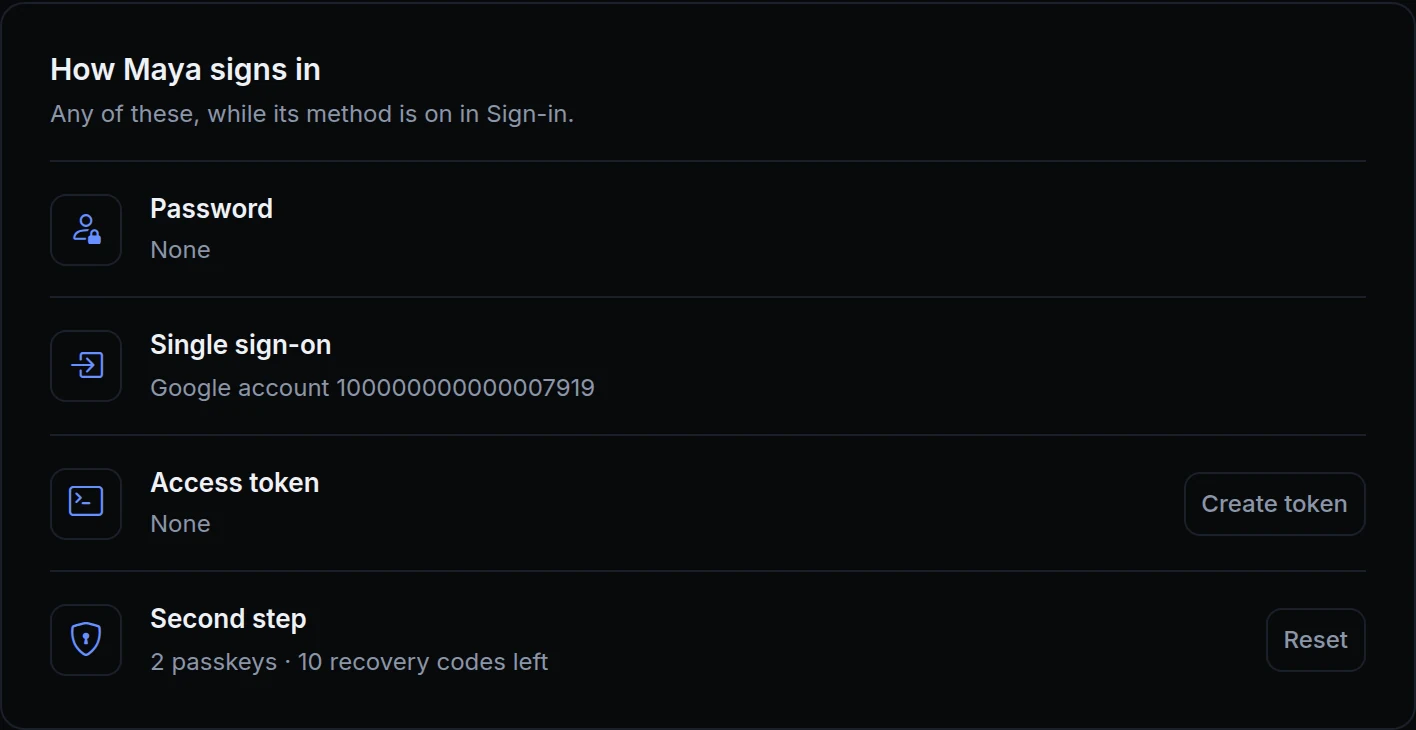
What changed
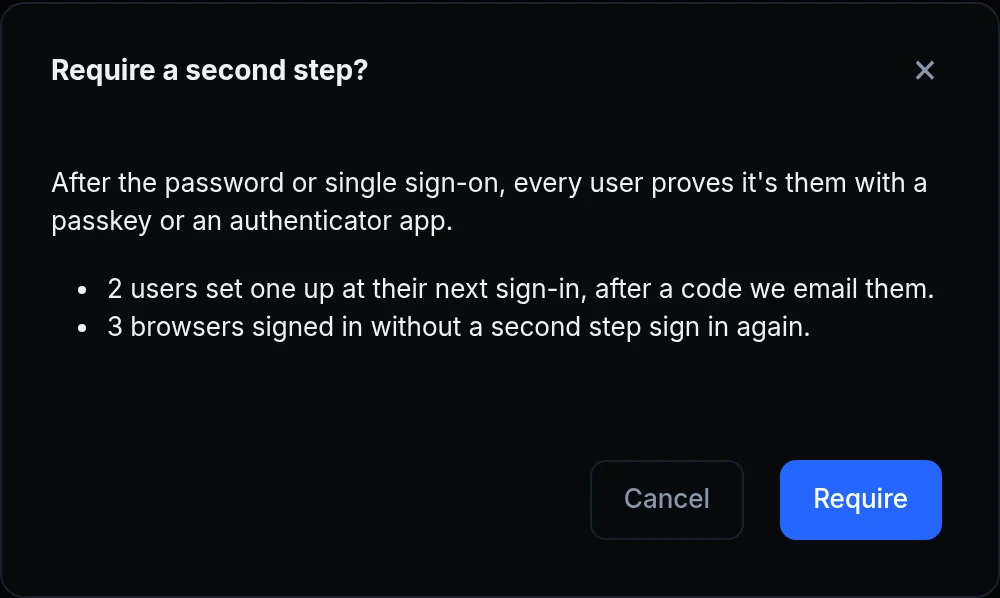
- Require a second step for everyone, in Sign-in under Second step. Before it saves, it says what changes for your users. It works over HTTPS.
- Users set it up themselves. At their next sign-in, after a 6-digit code we email them, they pick a passkey or an authenticator app. They also get 10 recovery codes, each working once.
- A setup link for users without an email. Create setup link on their page makes a link that works once, for 1, 3 or 7 days. It's shown once, for you to send them.
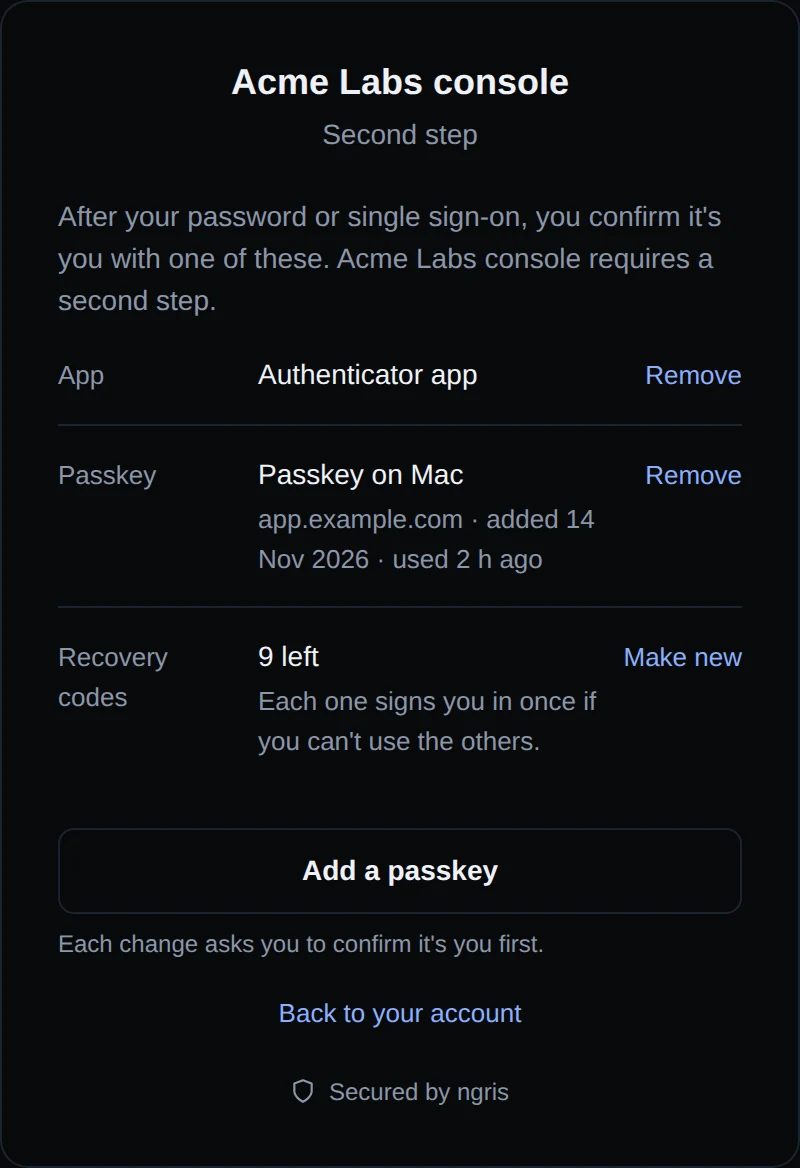
- On their account page. Users add a passkey or the app, remove one, make new recovery codes, or turn the second step off when you don't require it. They get an email when one is added or removed. Without the requirement, users can still add one there.
- Scripts keep working. Access tokens and API keys aren't asked for a second step. A password sent with each request is refused for users who need one: give those scripts an access token.
- Providers that ask their own. If your single sign-on provider already asks a second step of everyone, turn on This provider asks its own second step, and its sign-ins skip the endpoint's.
- Your app can check it. The signed token's
mfaclaim says how the browser passed:totp,passkey,recovery_codeorprovider. - Wrong codes pause. After too many wrong codes, the user's codes are paused for a while. A passkey keeps working.
Get started
- Open the endpoint's Sign-in & access tab, then Sign-in.
- Under Second step, turn on Require a second step for everyone, and save.
- Read what changes, then click Require.
- For a user without an email, open their page in Users and click Create setup link.
- Read the docs: Second step and The signed token.