
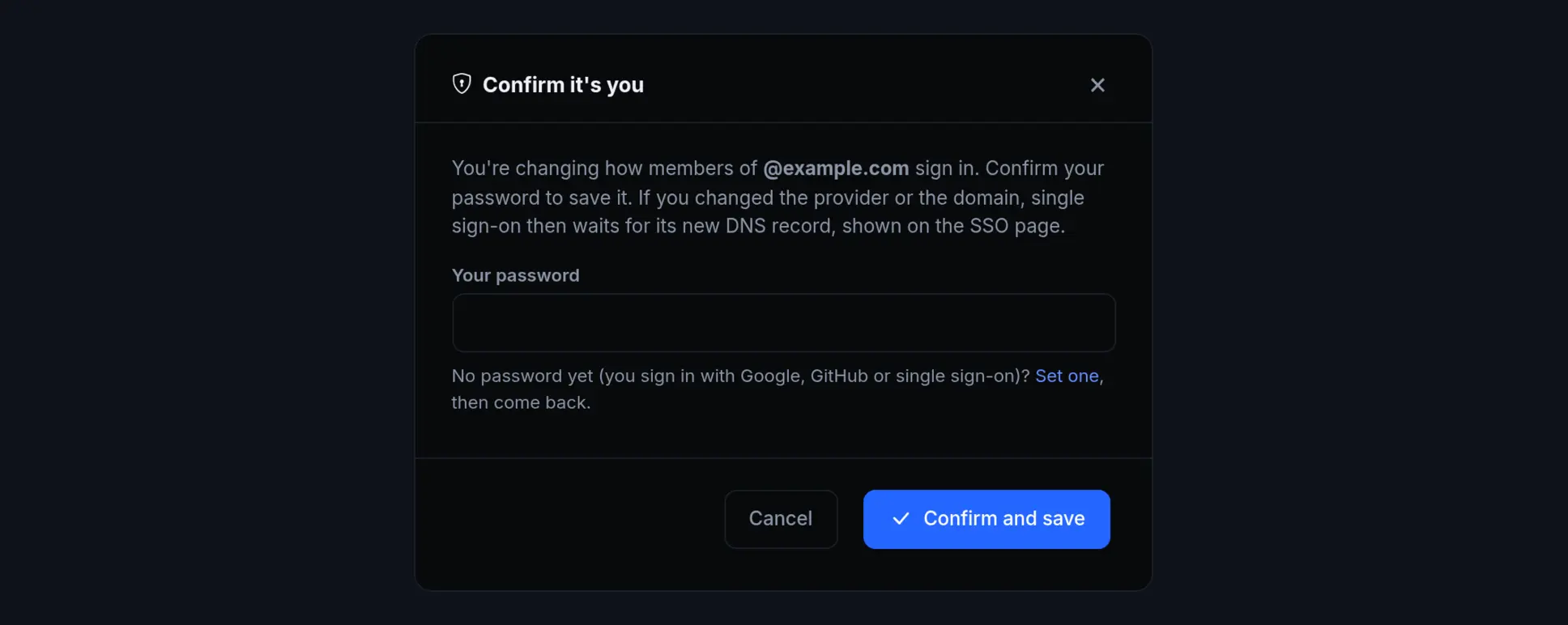
Single sign-on for your account decides how everyone with your email domain signs in to ngris. Whoever points that domain at another sign-in provider decides who can sign in as them, the owner included.
Now those changes are made by a person in the dashboard, who confirms them with their password. Above, the dialog that asks when the provider of @example.com changes.
What changed
- Your password confirms it. These ask for your password, and your authentication code when two-factor is on:
- another provider (its type, issuer, addresses or client ID);
- moving a verified domain to another one;
- turning enforcement off;
- deleting a verified domain's single sign-on.
- A new provider needs a new DNS record. After a provider or domain change, the SSO page shows a new TXT record. Single sign-on for the domain waits until it's published and the domain is verified again.
- People make these changes, not apps. MCP clients, Iris, apps and API keys get
interactive_session_required. Setting up Google or GitHub sign-in needs you in the dashboard too. - The rest saves as before: a new client secret, the scopes, and turning enforcement on.
- Service desk attachments. PNG, JPEG, GIF and WebP pictures show in place. Every other file downloads.
Get started
- If you sign in only with Google, GitHub or single sign-on, set a password first: Forgot password? on the sign-in page.
- Open Single Sign-On under Account in the sidebar, edit the provider and click Save changes. Enter your password, and your code if asked.
- After a provider or domain change, publish the new TXT record and click Verify domain on the SSO page.
- Read the docs: Single sign-on for your account and Update an SSO configuration.