
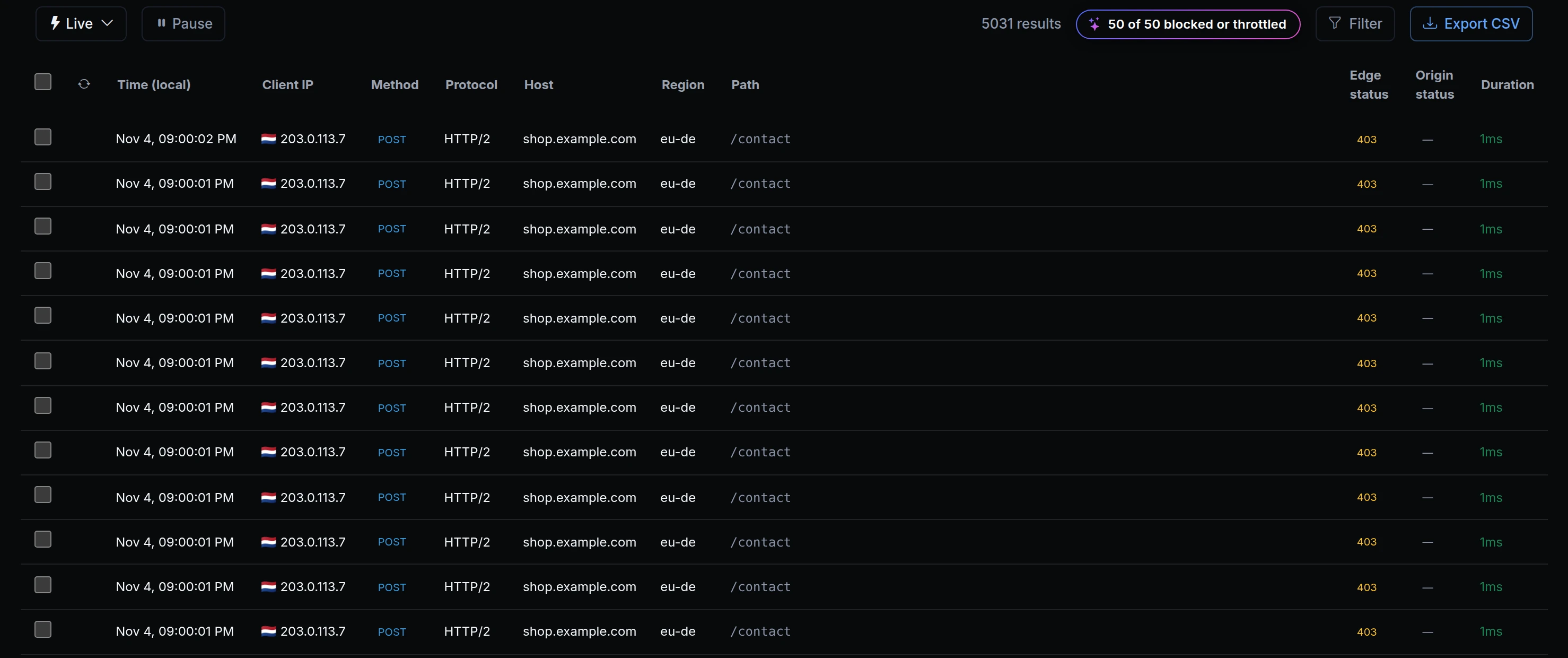
When a site sits behind Cloudflare's proxy, every request reaches ngris from Cloudflare's addresses. Your logs showed Cloudflare instead of the visitor, and an IP rule couldn't single out the one address that was spamming your contact form.
ngris now recognises the sites you run behind Cloudflare and uses the visitor's own address, as Cloudflare reports it, in your Traffic Inspector and your IP rules. In the Traffic Inspector above, every request to the storefront carries the spammer's own address, not Cloudflare's. When one visitor sends far more requests than usual, Iris tells you on the dashboard and offers a button that blocks that visitor on that site.


What changed
- The real visitor IP. For a site behind Cloudflare's proxy, the Traffic Inspector shows the visitor's address, your firewall policies and IP rules match it, and your app receives it too.
- Iris suggestions. When one visitor sends a site far more requests than usual, the suggestion names the site, the address and the count, and the account owner gets an email, at most one a day for each site. Nothing is blocked until you decide.
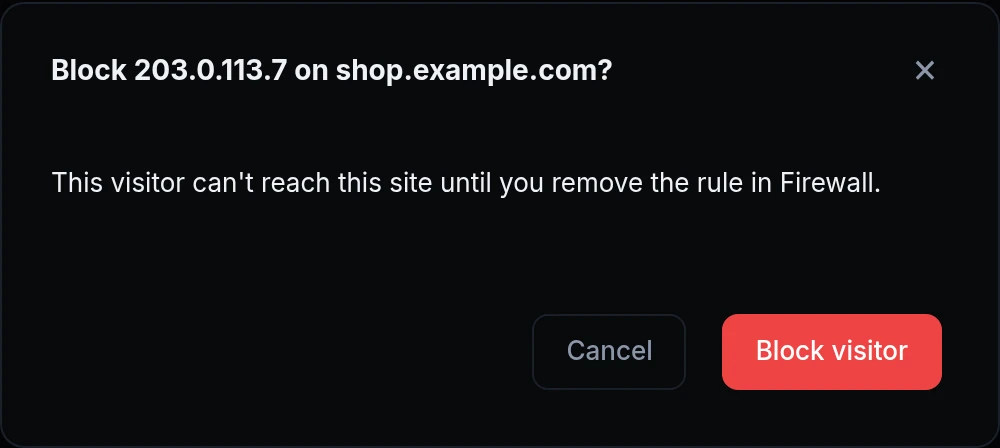
- Block this visitor. One click and a confirmation add a firewall policy named Block 203.0.113.7 on shop.example.com. It covers that address on that site only, so your other sites and visitors are untouched.
- Undo. Delete the policy under Security → Firewall Policies and the visitor can reach the site again.
- Not sure it's a spammer? Resolve with Iris opens the chat about this visitor. Iris explains what happened and can block the visitor once you confirm, or suggest a rate limit instead, which fits better when an office or a mobile network shares the address.
Get started
- Add your site as a custom domain under Gateway → Domains and keep Cloudflare's proxy on, with SSL/TLS set to Full or Full (strict).
- Turn on Traffic Capture for the site's endpoint, so its requests reach the Traffic Inspector and Iris can spot a flood.
- When a suggestion appears on the dashboard, click Block this visitor, or Resolve with Iris to talk it through first.
- Read the docs: When a visitor floods a site behind Cloudflare and Custom domains.