
Security Analytics ranked the networks your traffic came from, but it showed each one as a bare number, such as AS64501, so you had to look up who it was. And a traffic rule could check a visitor's path, headers and bot score, but not the network they came from.
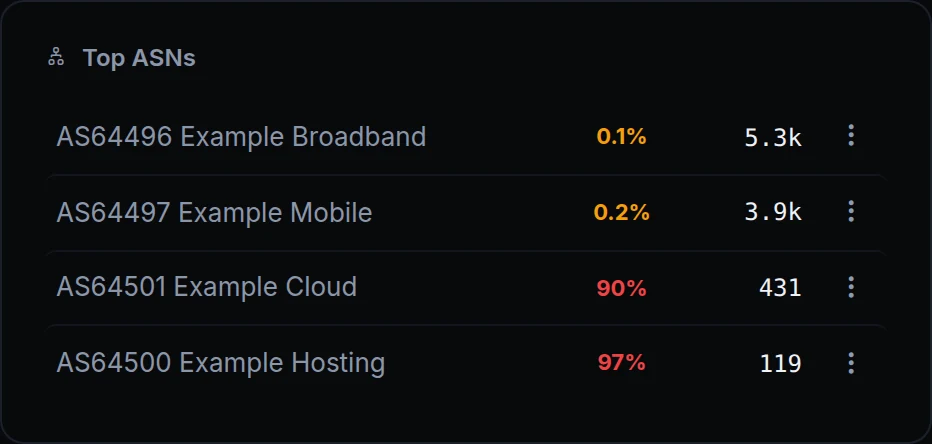
Now each network shows its name, and every traffic rule can match it. Above is the Top ASNs panel of Acme Labs' Security Analytics on November 8: its visitors come from broadband and mobile networks, and the two hosting networks at the bottom send little, nearly all of it blocked.
What changed
- Network names. The Top ASNs panel in Security Analytics shows each network's number and name, AS64501 Example Cloud, where it showed the number alone.
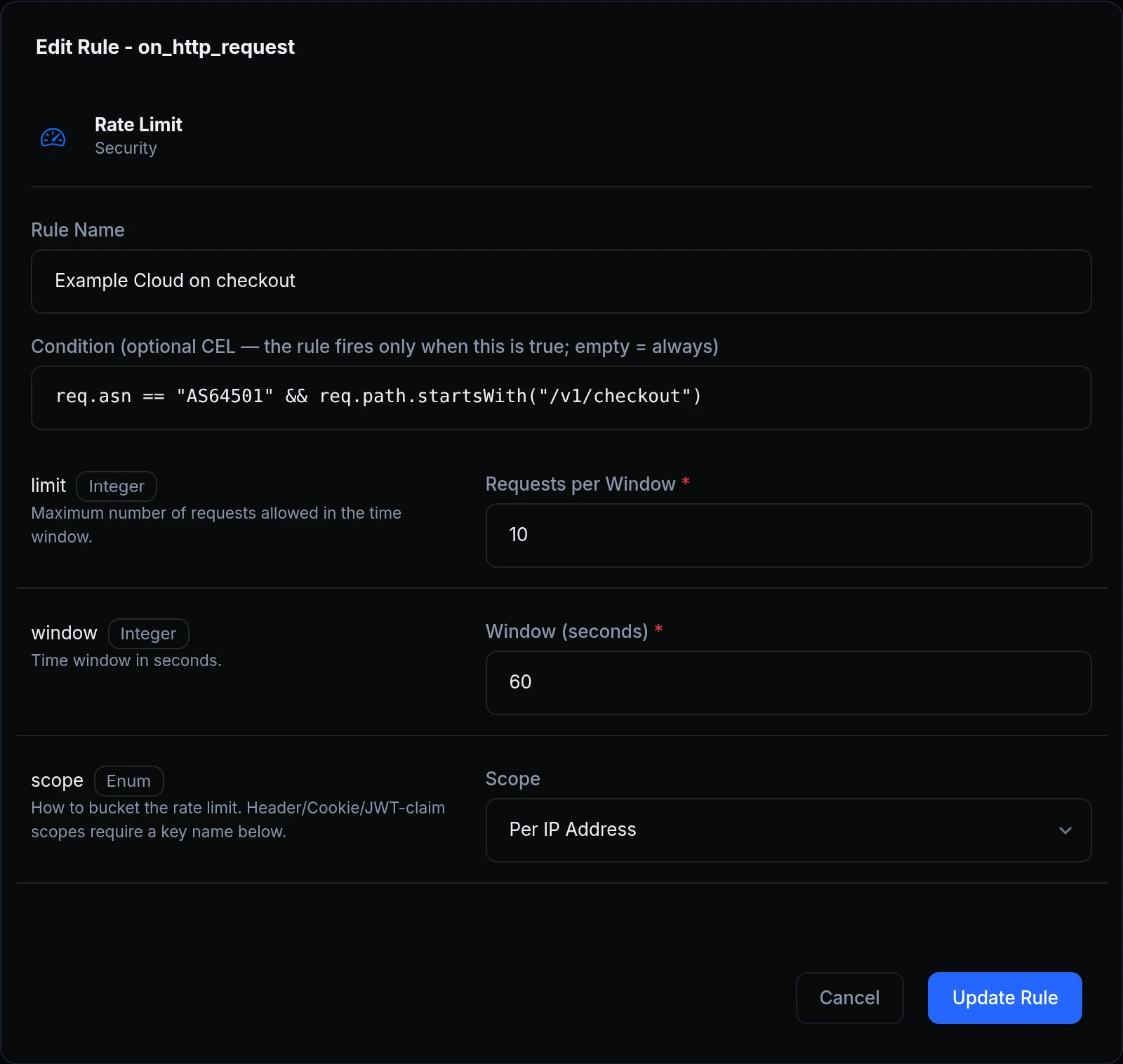
- The visitor's network in your rules. Firewall policies could already block a whole network. Now any traffic rule can use it in its condition:
req.asn == "AS64501". It's written the way the firewall writes networks, it's empty when the network isn't known, and it combines with everything else a condition reads: the path, headers and bot score. - Load-test tools count as automation. k6, ApacheBench, Siege, Artillery and fasthttp, with their default user agents, now score like curl. With Challenge only suspicious visitors on, they get a 403 without a check, and rules on
req.bot_class == "automation"match them. To load-test your own endpoint behind a challenge, let your test machine through with the challenge rule's Allowed IPs.
Get started
- Open Security Analytics and look at Top ASNs: the networks your traffic comes from, and how much of each was blocked.
- Open an endpoint's Endpoint Settings → Traffic Policy and click Add Rule next to
on_http_request. - Choose a rule, for example Rate Limit, and set its Condition:
req.asn == "AS64501" && req.path.startsWith("/v1/checkout"). - Load-testing an endpoint that challenges visitors? On the same tab, edit the Challenge rule and add your test machine's IP under Allowed IPs.